
1. A white pixel and a transparent pixel are different
When you view a logo on a white page, it can be difficult to tell whether its background was removed. An area painted white and an area that reveals the white page behind it can look similar. RGB describes a pixel's color components, while alpha describes how opaque it is. Alpha 0 means fully transparent, and the highest value in the available range means fully opaque. That maximum is 255 for 8-bit alpha and 65535 for 16-bit alpha. Keeping a white pixel's color while lowering its alpha therefore stores different information from simply painting the surrounding area white.
A .png extension does not mean that every file contains transparent areas. The PNG standard allows alpha values alongside RGB or grayscale samples, a transparency table associated with a palette, or a particular color designated as fully transparent. A PNG that records no transparency and has only opaque pixels is also a valid file. To decide whether a background was removed, examine the opacity in the saved image rather than relying only on its name or format. For the same reason, seeing a white area on screen is not enough to conclude that transparency was lost.
2. A checkerboard is a display aid for showing transparency
Image editors sometimes display a grid of gray, white or other colors behind an image to make transparent areas easier to recognize. In that case, the checkerboard is an editing-interface indicator of an empty background, not colors painted directly into the image. A web editor can achieve this effect with a CSS background behind the canvas. If that background was not drawn into the canvas during export, the pattern you saw on screen does not become PNG pixel data. Distinguishing transparency data from the interface used to visualize it helps avoid confusion.
Conversely, a checkerboard may already be part of the image itself. In a screenshot of an editing interface, or a file with a checkerboard background layer merged into it, the pattern can consist of actual pixel colors. Saving such a file as PNG does not automatically make the grid transparent. To check, open the saved file in a view without a checkerboard and change the background color behind it. If the grid remains and obscures that background, investigate whether the pattern is inside the image. Start by inspecting the file downloaded through the editor's image-save function rather than a screenshot of its preview.
3. Partially transparent edge pixels are composited with the background
When you enlarge the edge of a rounded letter or diagonal line, you may find intermediate levels between fully visible and fully transparent pixels. Partially transparent pixels can reduce the jagged, stair-step appearance of an edge. The final color on screen depends on the background's color and alpha as well as the foreground image's color and alpha. The W3C compositing model describes this relationship through the contributions of the foreground and backdrop. Differences in edge brightness when the same translucent logo appears over white and dark backgrounds can be a normal result of this compositing.
This makes it easy to miss edge problems if you assess background removal against white alone. Compare the same saved file over a light background, a dark background and the background on which it will actually be used. Changing all partially transparent edge pixels to alpha 0 or the maximum value can remove smooth transitions and make lines thinner or rougher. Conversely, translucent color left outside the intended shape can create an unwanted fringe. The question is not simply whether at least one transparent pixel exists, but whether the shape that should remain and the outer area that should disappear each have the intended appearance.
4. Investigate both remaining color and selection boundaries when a white fringe appears
An image previously composited over white may already contain some of that white in its edge colors. Making only exactly white pixels transparent can leave light gray or pale-colored edges that look like a border against a dark background. This problem can occur even in a file that has alpha. Making some of the outer background transparent and having edge colors that work well over a new background are separate things to verify. If a white fringe appears, first distinguish the colors remaining in the source, the partially transparent edge and the area from which the background was removed.
Increasing a tool's tolerance to remove similar colors may reduce the fringe, but it can also erase details that should remain, such as the whites of eyes or light-colored lettering. A tool that selects only connected regions has a different scope from one that selects the same color throughout the image. Limit the operation to the necessary area and examine edges while comparing with a copy of the original. If the subject and background have already been merged into a single opaque image, the exact previous colors and alpha generally cannot be reconstructed from that result alone. An automatic background-removal estimate should not be treated as a complete recovery of the pre-edit data.
5. Lossless PNG saving and JPEG conversion serve different purposes
PNG uses lossless compression, but that does not mean that every edit made before saving was lossless. If you resize an image, reduce its number of colors or merge it with a background before saving PNG, PNG records that already altered image. Details lost in JPEG or transparency removed earlier do not return just because the image is converted to PNG. Changing a file name's ending from .jpg to .png is not even a conversion that re-encodes the internal data into another format. If you need a transparent result, check both that the image being edited actually has transparency and that the export format can store it.
Ordinary web JPEG does not support an alpha channel, so converting a transparent image to JPEG requires deciding which background to composite it onto. For an image intended for a white product page, for example, composite it over the intended white background first and inspect the result. Do not assume every editor will automatically fill with white when no background is chosen. The HTML Canvas standard, for example, specifies compositing over an opaque black background when serializing to a format without alpha support. Export files that must remain transparent in a format supporting alpha, and save copies requiring an opaque background separately according to their purpose.
6. Reopen the saved file and check it under its actual conditions of use
Even if the editing preview looks correct, different export settings or delivery processes can change the final result. Reopen the saved file itself and check its pixel width and height, selected format, transparent outer area and partially transparent edges. Distinguish zooming out to fit the display from resizing that actually reduces the image's pixel dimensions. If you intend to publish it on the web, inspect it against the real page background after upload too. An upload service may process images again, so do not assume that a correct local result proves the published file is identical.
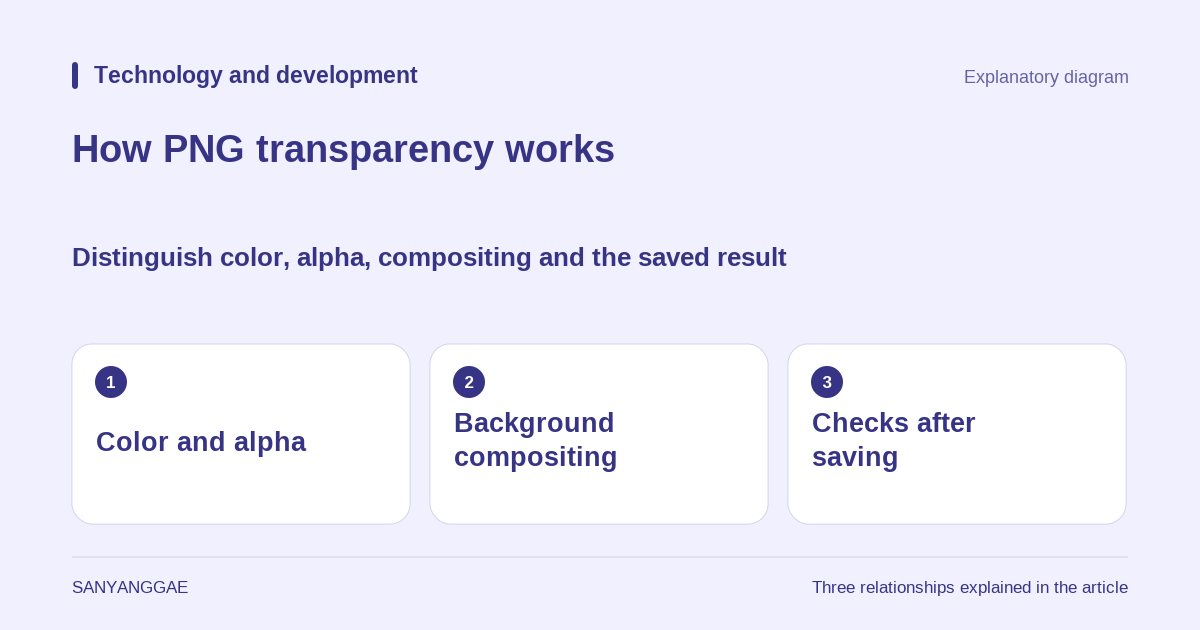
Keep originals or working files retaining layers and masks separately from distribution images if you plan to continue editing. If only a flattened result remains, changing to a different background later may require estimating selection boundaries and edges again. This article's original explanatory diagram separates color and alpha, compositing over a background and checking the saved result; it is not a screenshot of a particular editor or an image-quality measurement. When working with transparency, examine what information remains in the file rather than merely whether a pattern is visible, and make a habit of checking the saved result again over its intended background.